
Contents
- Budget the scene before expanding the prompt
- Turn the exchange into a measurable beat sheet
- Use documented iteration without confusing it with tested output
- Convert the plan into compact prompt clauses
- Place cuts where attention changes
- Reserve a clean ending frame
- Review the scene in chronological order
- Check speakers, pauses and the cut back
- Dialogue troubleshooting questions
A short exchange can overload a video prompt surprisingly quickly. Two spoken lines may also require an establishing view, separate expressions, a listener reaction, a camera change, and a usable ending frame. If those events are described together without an order, the scene may be clear as prose but difficult to evaluate as video.
The solution is to plan dialogue as timed visual beats. This SpicyChat AI guide concentrates on that micro-timing task rather than the broader production pipeline covered in the chat-to-video workflow.
This is an independent editorial guide under this site’s SpicyChat AI brand. Its product link opens SpicyBox; no integration with SpicyChat.ai or a named video model is established here. The examples below are non-explicit performance plans. Every precise second is an illustrative target, not a measured output or a guarantee of frame-accurate generation. Implement timing through supported controls or editing.
Budget the scene before expanding the prompt
Set four boundaries first:
- Total clip duration
- The scene’s emotional turn
- Fixed speaker positions
- The required final frame
Consider this non-explicit exchange from Google DeepMind’s Veo prompt guide:
Camper: “I’m one with nature now!”
Bear: “Nature would prefer some personal space.”
Google’s guide treats framing and camera movement as explicit prompt choices. It also presents a separate action example as an exact sequence occurring within eight seconds, which makes that duration a useful container for this planning exercise.
The exchange contains 11 spoken words: five in the camper’s line and six in the bear’s. At an initial planning rate of 2.5 words per second, the initial estimated speech time is 4.4 seconds:
11 words ÷ 2.5 words per second = 4.4 seconds
That leaves an estimated 3.6 seconds for the opening composition, listener reactions, a shot change, and the ending hold. This is only a starting budget. Read or record the dialogue at the intended emotional pace, measure it, and replace the estimate before locking the intervals. A dry reply, for example, may need more space than a neutral word-rate calculation allows.
If the measured reading does not fit, shorten the wording or divide the scene. Removing every pause is rarely a good solution: without a listener beat, two lines can feel disconnected even when neither overlaps.
When selecting an Adults 18+ AI video generator, check its documented limits for clip duration, dialogue or audio, reference images, framing, and camera control. A timecoded plan remains useful even when timestamps must be implemented through separate shots or editing rather than entered directly.
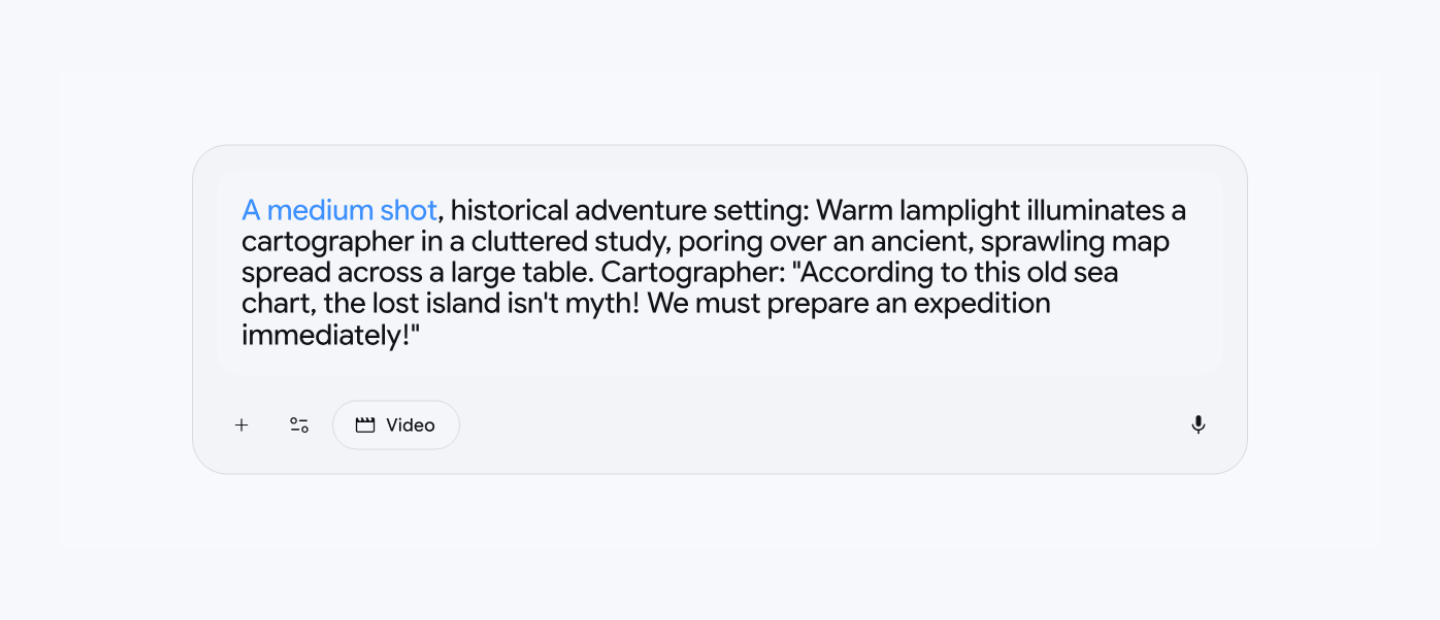
The Veo prompt guide places the shot size at the beginning of the scene description, demonstrating framing as an explicit prompt choice.
Turn the exchange into a measurable beat sheet
Assign one dominant performance change to each interval. A character may speak while holding a pose, but avoid combining a new expression, hand gesture, body turn, camera move, and line delivery at the same moment.
| Time | Speech | Visible performance | Reaction beat | Camera state | Acceptance criterion |
|---|---|---|---|---|---|
| 0.0–0.6 s | None | Camper holds a pleased expression; bear remains neutral | Establishing hold | Static medium two-shot | Both characters and their screen positions are clear |
| 0.6–2.4 s | Camper delivers the first line | One small outward hand gesture | Bear remains still | Camera stays fixed | Only the camper speaks and gestures |
| 2.4–3.0 s | None | Bear shifts its eyes toward the camper | 0.6-second listener reaction | Hold the two-shot | The reaction begins after the line ends |
| 3.0–5.6 s | Bear delivers the reply | Bear settles into a dry, unimpressed expression | Camper holds position | Cut to a medium two-shot favoring the bear; keep the camper visible | The cut matches the speaker handoff |
| 5.6–6.3 s | None | Camper’s smile tightens slightly | 0.7-second response | No new camera motion | The camper reacts without adding a gesture |
| 6.3–8.0 s | None | Both hold their settled expressions | 1.7-second ending hold | Stable composition | No speech, cut, or fresh movement occurs before the end |
The speaking windows total 4.4 seconds, matching the preliminary word-rate estimate. They should still be revised after timing an actual reading. If the bear’s delivery takes three seconds, for example, the table must surrender time elsewhere or use a longer clip; the voice should not simply be forced into a smaller interval.
Pause lengths are adjustable planning defaults, not universal model settings. Their value lies in making each reaction inspectable. “Pause briefly” has no reliable boundary. “Bear remains still until 2.4 seconds, then shifts its eyes over 0.6 seconds” identifies the subject, timing, visible change, and camera state.
Use stable subject labels as well. Define “camper on frame left” and “bear on frame right” once, then repeat those labels. Switching among “the camper,” “the traveler,” “he,” and “the first character” introduces avoidable ambiguity.
Use documented iteration without confusing it with tested output
Adobe’s guide to effective video prompts illustrates iterative refinement with a mech scene. The first three versions show how the description develops.
The initial operation is a basic wide, eye-level shot of a giant mech in a street. The second prompt fills visible specification gaps by adding yellow and orange armor, desolate streets, wires, LEDs, and cybernetic parts. The third iteration adds distinct actions and environmental events: the mech marches, fires, and scans while rubble, fires, and an ominous setting define the surrounding scene.
The practical adjustment is incremental rather than wholesale. Camera position and subject remain anchored while character detail, environment, and action are added in separate passes. The documented outcome is a substantially more specific final prompt whose components can be inspected individually; Adobe does not publish a comparative output score for the three versions.
The same method improves dialogue planning. Begin with the two speakers and fixed composition. Add the first delivery. Add the listener reaction. Add the reply. Add only one motivated shot change, then reserve the final hold. If a beat fails review, its clause can be revised without rewriting the character, location, lighting, and every other action.
Adobe recommends the order “shot description + character + action + location + aesthetic.” It also advises concrete verbs and pacing modifiers such as “slowly,” “quickly,” and “gradually.” For a timed scene, combine those terms with observable boundaries: “slowly turns over 0.7 seconds” is more reviewable than either “turns” or “slowly turns.”
Convert the plan into compact prompt clauses
Separate persistent scene information from chronological performance instructions.
Scene setup
Stop-motion campsite at dusk. Camper on frame left; bear on frame right. Medium two-shot, warm firelight, restrained movement, dry comic tone. Preserve character appearance, wardrobe, lighting direction, and screen positions throughout.
Timed performance
0.0–0.6: static establishing hold with both characters visible. 0.6–2.4: camper says, “I’m one with nature now!” while making one small outward hand gesture; bear remains still. 2.4–3.0: no dialogue; bear shifts its eyes toward the camper. At 3.0, cut to a medium two-shot favoring the bear while keeping the camper visible. 3.0–5.6: bear says, “Nature would prefer some personal space,” with a restrained, unimpressed expression; camper holds still. 5.6–6.3: no dialogue; camper’s smile tightens slightly. 6.3–8.0: both hold their final expressions; camera locked; no new speech or movement.
This structure keeps revisions local. An early bear reaction points to the 2.4–3.0 clause. A rushed reply points to the 3.0–5.6 interval. Neither problem requires changing the campsite, visual style, screen positions, or opening gesture.
If the generator does not accept timestamps, preserve the same sequence with explicit connectors such as “after the camper finishes,” “then the bear looks toward the camper,” and “only after that, the bear replies.” For a tool that performs better with one action per generation, split the table into shots and join them during editing.
Place cuts where attention changes
A shot change should clarify a story event. In a short dialogue scene, the strongest cut points are usually:
- A speaker handoff
- An emotional reversal
- A reveal that cannot be read in the current framing
The example cuts when the bear starts speaking. Attention transfers to the new speaker without interrupting the camper’s line or concealing the bear’s first reaction. Cutting during the camper’s gesture would ask the viewer to process physical action and a new composition simultaneously.
A cut is not mandatory. Google’s Veo guidance identifies framing and camera movement as prompt decisions, but a locked camera may communicate facial timing more clearly than a pan, zoom, or orbit. If continuity is fragile, keep the two-shot and let the performance carry the handoff.
The SpicyChat AI scene recipes provide broader guidance for matching framing and motion risk to different scene types. Choose the overall setup there, then use the beat sheet to control events within the shot.
Reserve a clean ending frame
Do not end on the final syllable. Specify a settled pose, expression, composition, camera state, and usable hold. In this plan, the last 1.7 seconds contain no dialogue, gesture, cut, zoom, or expression change. That interval gives an editor room to trim or transition without stopping on an active mouth shape.
Adobe’s GenStudio video documentation describes one Firefly integration. Its separate image-to-video instructions explain first- and last-frame controls and setting interactions. If the chosen service exposes a compatible final-frame input, it can reinforce the planned ending; do not assume all camera controls remain available with it. Otherwise, plan a settled pose and allow time to trim the result.
A clean ending specification should answer five questions:
- Who remains visible?
- What expression does each character hold?
- Are the hands and body still?
- Is the camera locked?
- How long is the usable hold?
“End naturally” answers none of them.
Review the scene in chronological order
Read the beat sheet from left to right and stop at the first failed interval. Confirm that:
- Measured dialogue fits its speaking windows without overlap.
- The listener stays still until the named reaction beat.
- Each reaction changes one visible feature rather than the entire performance.
- Speaker labels and screen positions remain consistent.
- Every cut corresponds to a handoff, reversal, or reveal.
- Camera motion does not compete with the important facial change.
- The last pose settles before the clip ends.
- Every instruction can be judged as present, absent, early, or late.
If the plan remains crowded, remove a secondary gesture before removing the listener reaction. If it still does not fit, divide it into separate shots. The useful measure is not how many instructions enter one prompt, but how many beats the viewer can clearly perceive.
Check speakers, pauses and the cut back
Make a scratch recording before paying for a dialogue attempt. Read each line in character, leave the intended silence and listen once without looking at the timing table. Measure from the first audible word to the last, then adjust the speaking windows. Keep the recording only as a private planning aid unless you have the rights and consent needed for any later use.
For a model that supports speech, name the speaker consistently and separate the spoken words from the visible action. Google's Veo API guide documents dialogue and sound prompting for supported Veo models. That capability does not establish audio support in SpicyBox or another generator. If your selected mode is silent, plan a separately recorded track or captions instead of spending retries to request an unavailable feature.
Review the result in three passes:
- Audio only: compare the actual words with the script. Listen for a clipped opening consonant, missing final word, overlapping lines or silence that disappears between speakers.
- Picture only: check which mouth moves, when the listener reacts and whether the screen positions remain understandable.
- Together: check whether the right voice belongs to the visible speaker, and whether the reply begins after the listener has had time to register the first line.
In the example, the cut favors the bear for the reply, but the next reaction belongs to the camper. If that reaction is unreadable in the bear-favoring composition, plan a cut back after the bear finishes or return to the two-shot. Do not add a camera pan and a new gesture simply to force both reactions into the same frame. Preserve the characters' left/right relationship across the cut.
Dialogue troubleshooting questions
What if the last word is cut off?
First compare the measured delivery with its window. Shorten the line or reserve more speaking time; preserve a small ending hold. If the complete word exists in the source clip but disappears in the edited export, fix the trim instead of generating again. Time-stretching an entire clip can also alter performance and sound, so review the result before accepting it.
What if both characters speak at once?
Check for ambiguous speaker labels, overlapping windows or instructions that ask for simultaneous reactions. Keep one speaker active while the other listens. If attribution still fails, split the delivery into separate shots with a clear listener reaction between them. Change that one structural choice before revising appearance, lighting and style.
What if the model ignores the pauses?
Treat the beat sheet as the editorial target. A generator may approximate sequence without honoring an exact interval. Remove a secondary beat, use separate clips, or add a quiet listener shot during editing. Do not represent timestamps as an enforced timeline unless the product documents that control.
What if the timing works but the scene still feels flat?
Check whether the listener's expression actually changes and whether the camera lets the viewer see it. A shorter reaction can read better than a longer empty hold. Compare two edits with only the reaction length changed, and choose the one that communicates the turn without rushing the reply. Record that as your editorial choice, not a universal timing rule.